
Last Updated on January 27, 2026 by Justin Bryant
As a business owner, one of the hardest things to learn is how to budget properly without sacrificing growth.
One of the most well-known ways to grow a business is to use email marketing. “Experts” mention how important it is to build your email list because it isn't at the mercy of social media algorithms or another company's guidelines.
I agree with this, but I have also learned that building a huge list isn't exactly the goal of email marketing.
In my opinion, your email list size is a vanity metric. In my experience, it's better to have a smaller, higher-quality list than a large, mostly inactive one.
This is why when I see the pitch to “join our list of 100,000 subscribers”, I am not impressed. In fact, it makes me wonder how much money they may be wasting on subscribers that haven't opened a single email in a year or more.
To keep from wasting money on a bloated email marketing budget while still keeping around your REAL subscribers, you need to practice proper list hygiene.
Email list hygiene is one of the most overlooked parts of email marketing. Yet it has a direct impact on costs, deliverability, and results.
One of the issues with email hygiene that I have had is forgetting to do it periodically. This leads to an inflated email list with lots of inactive subscribers that never interact with your content.
This guide explains how to automate email list hygiene using GetResponse. The goal is simple: Automatically remove subscribers who have not opened any emails after one full year, without needing manual cleanup.
This approach helps reduce software costs, improves engagement rates, and keeps your list focused on people who actually care.
What Email List Hygiene Means
Email list hygiene is the process of removing inactive or unengaged subscribers from your email list.
Inactive subscribers are people who stay subscribed but never open your emails. They increase your costs and hurt performance metrics.
Email marketing software charges based on list size. Keeping disengaged contacts means you are paying for subscribers who provide no return.
What matters is not how big your list looks. What matters is how many active subscribers you have.
Why Automating Email List Hygiene Saves Money
Manual list cleanup rarely happens on a consistent schedule. Most business owners forget or delay it.
Automation solves this problem by enforcing rules in the background.
Benefits of automating list hygiene include:
• Lower email marketing costs
• Higher open and click rates
• Better sender reputation
• Less time spent on manual cleanup
Once automation is set up, it runs continuously without attention.
The Logic Behind the One-Year Rule
The workflow in this guide removes subscribers after one full year of zero opens.
This timeframe is long enough to account for seasonal behavior, inbox overload, or temporary disengagement.
If someone has not opened a single email in 365 days, they are probably not interested. Unless they lost their email sign-in credentials or went off grid for a long time, they probably won't come back and start clicking on emails if they haven't for a full year.
Removing them protects your budget and your deliverability.
Again, I am using GetResponse for an example of how to do this. If you use another email marketing SAAS, the setup steps may vary.
Step 1: Create the Trigger That Catches Every Subscriber
This trigger acts as the gatekeeper for the entire automation.
First, go to “Automation”.
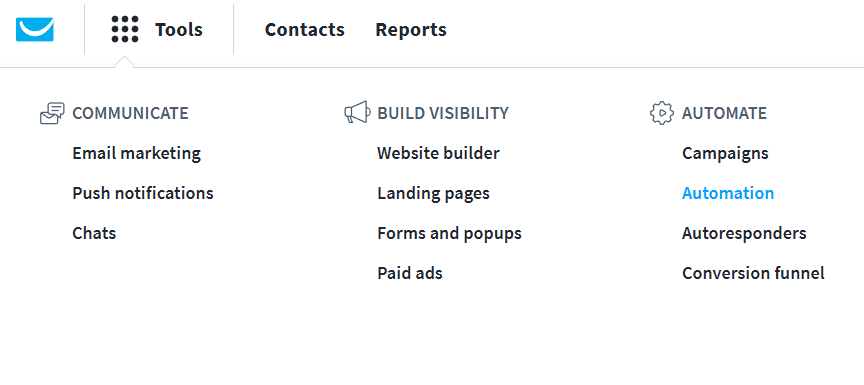
Then select “Create workflow”.

After that, you want to click “Build from scratch”.
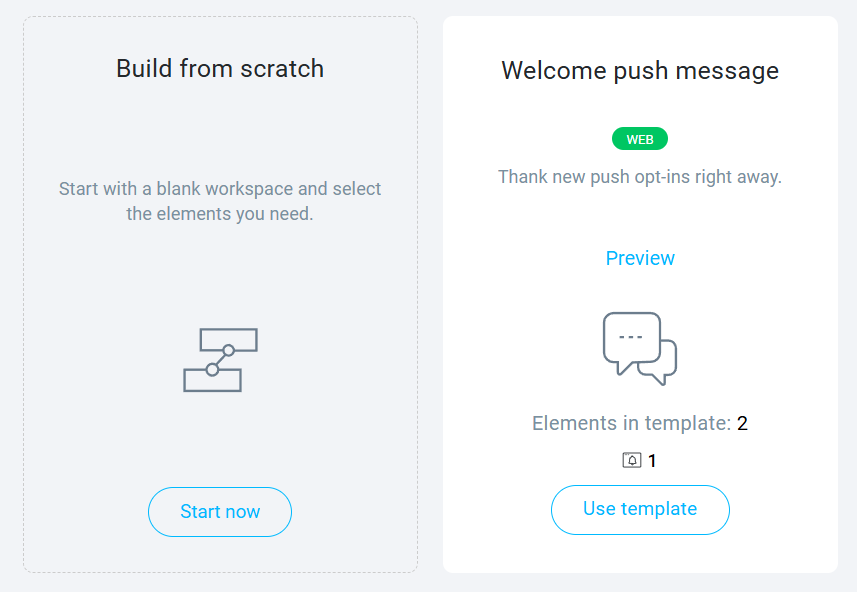
Make sure you choose the “Email” channel, not “Web”.

Drag the “Subscribed via…” element onto the canvas. In GetResponse, it is located in the “Basic” section of “Conditions”.
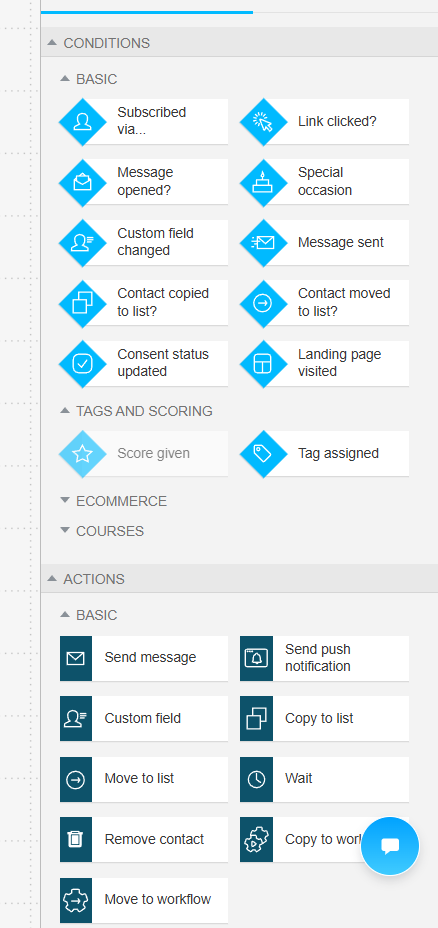
It will look like this once you have dragged it onto the canvas:

Settings to use:
• Select a specific list or choose “Any” if you want to clean all lists
• Turn ON “Include contacts who are already in this list before the workflow starts”
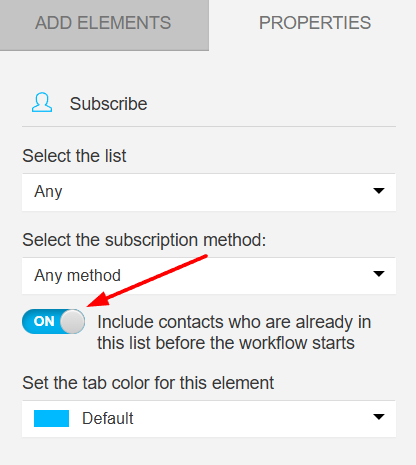
This setting is critical. It ensures existing subscribers are pulled into the automation, not just new ones.
Step 2: Add a 365 Day Wait Timer
Next, drag a “Wait” node and connect it to the trigger.
The “Wait” node is located under the “Actions” section.

Drag it over and connect the dots as you see in the image above.
Then, click on the “Wait” node and set the wait time to 365 days.
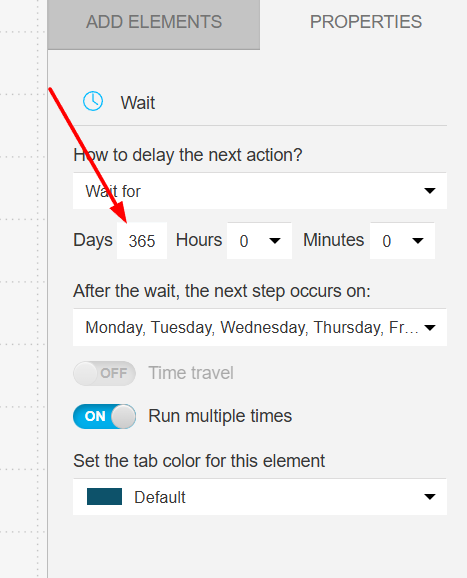
This pauses the workflow until the subscriber reaches their one-year anniversary.
The automation does nothing during this time. It simply waits.
Step 3: Check Engagement History
After the wait period, you need to check whether the subscriber has ever opened an email.
Drag the “Message opened?” condition and connect it to the “Wait” node.

Use these settings:
- Select “Any” under “Which message opens do you want to track?”
- “Run multiple times” set to ON
- “When to assume the condition wasn't met?” set to “After 1 day”
These should mostly be set this way by default.

Step 4: Automatically Remove Inactive Subscribers
Find the “Remove contact” action and drag it over to the canvas.

Now connect the red “No” path from the “Message opened?” condition to the “Remove contact” action.
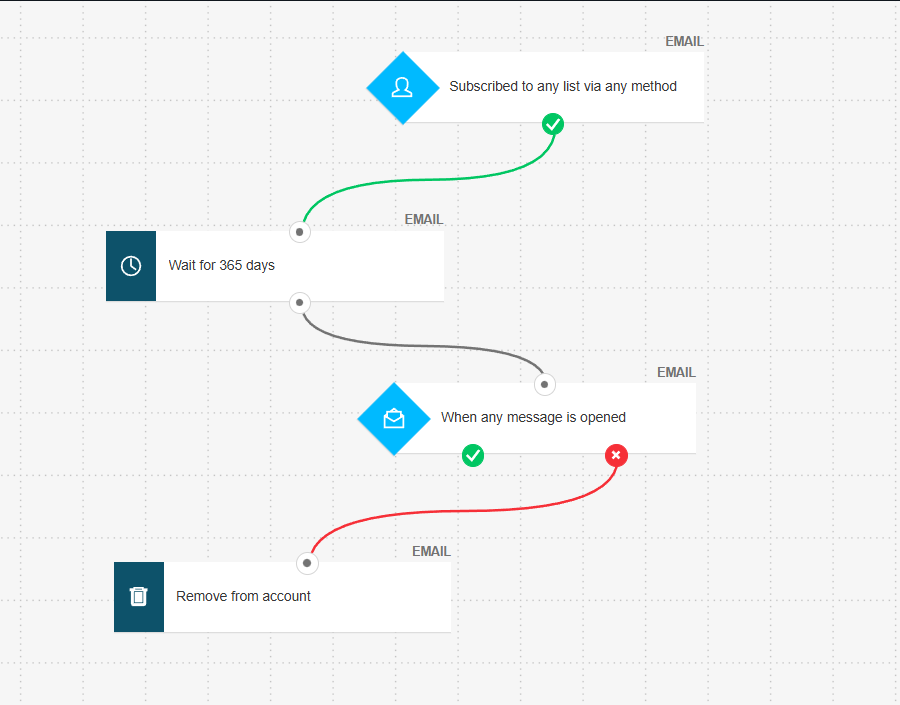
Change the removal setting to “Entire Account”.
I do this because the workflow we are using is not list-specific. This means that if this workflow determines someone isn't active, that should be for ALL lists they happen to be in when the conditions are met.
You can also keep this list-specific, if you want. There may be some cases where someone could be in multiple lists and be more active in one than the other.
If you aren't sure which one to do, I would just set it to “Entire account” for now.

After you've done all of that, you can save the workflow and publish it.
Once you do, you will see a pop-up like this, asking if you want to check a few more settings before making it live:

As you can see, I used the default setting to start immediately and never end. This is because you want it to constantly keep your lists free of inactive subscribers that would otherwise cost you money.
I also checked the box to “Filter bot activity in workflow's email elements” for my settings. The reason I did that is to just make sure the bots don't count as active subscribers. You want a list of REAL humans taking REAL action if you are paying a fee to keep them around.
Once you click “Finish”, this will permanently remove subscribers who did not open a single email in one year.
Optional step for engaged users:
• Connect the green “Yes” path to a “Tag” action
• Apply a tag like “Active Veteran”
This gives you visibility into who your long-time, loyal subscribers are who passed the engagement check.
Why This Automation Works Long-Term
This workflow solves list hygiene permanently.
Every subscriber is evaluated automatically after one year. No reminders. No spreadsheets. No manual exports.
It removes vanity metrics from your reporting and forces your list to reflect real engagement.
Smaller, engaged lists outperform larger inactive ones every time when it comes to ROI.
Common Mistakes to Avoid
Avoid these issues when setting up automation:
• Forgetting to include existing subscribers
• Using shorter timeframes that remove seasonal readers
• Removing contacts at the list level instead of the account level
• Running cleanup manually instead of automating it
Automation only works if the logic is correct.
Frequently Asked Questions
Will deleting these contacts lower my monthly bill immediately?
Not always instantly. GetResponse usually bills based on the peak number of unique contacts in your account during your current billing cycle. While the deletion happens now, you will likely see the price drop on your next invoice.
Does “Delete from Account” remove them from every list?
Yes. If a subscriber is on your “Newsletter,” “Ebook,” and “Customer” lists, they count as one unique contact. Using “Delete from Account” wipes them from all three. This is the cleanest way to ensure you aren't paying for them anywhere.
What happens if a deleted contact signs up again later?
They are treated as a brand-new subscriber. Their previous history (old opens/clicks) is gone, but they will enter your “Welcome” automation just like any other new lead. Deleting them does not “ban” them; it just clears their current data.
Is “Never Opened” 100% accurate?
99% accurate. Some email clients (like old versions of Outlook) block the tiny tracking pixel GetResponse uses. However, if they haven't opened or clicked anything in a full year, the chances of them being an active, profitable lead are near zero. It’s worth the “risk” of deleting them to save money.
Should I “Block” them instead of “Deleting” them?
Delete: Best for hygiene and saving money. They can sign up again.
Block (Blacklist): Best for people who complain or mark you as spam. They can never be added back, even if they try to sign up.
Recommendation: Stick to Delete for inactivity so you don't accidentally block someone who might want to buy from you in 2027.
Why did my “Subscribed via” trigger not start moving people immediately?
If you forgot to toggle the switch “Include contacts who are already in this list” to ON before publishing, the automation will only wait for new people who sign up from today onwards. If this happened, you’ll need to turn the workflow off and back on with that switch enabled.
Can I “Undo” a deletion?
No. Once you delete it from the account, that contact data is purged. If you are nervous, you can go to Contacts > Export and download a CSV of your inactive segment before you hit the delete button. That way, you have a backup of their emails just in case.
Final Thoughts on Automating Email List Hygiene
Automating email list hygiene is one of the highest return actions you can take in email marketing. It reduces costs, improves engagement, and removes emotional attachment to list size.
If you use GetResponse and follow this workflow, list hygiene becomes a background process that never gets forgotten.
Keep your TRUE fans around and filter out the rest that are merely costing you money.